Products
The platform powered by all of your business context.

Inbound Booking
A link anyone can use to book a call with you
Set up your booking link
- An admin on your account sets up the booking link.
- Choose how long a call is, how much notice you need and how far ahead people can book.
- Add up to five questions for the person booking to answer.
- Share the link with anyone.
How someone books
- They pick a day and a time, shown in their own time zone.
- They give a name and an email address.
- They don't need an Orvaly account.
Confirmation and joining
- They receive a confirmation email with a calendar invite.
- The meeting is already created, so the call runs in Orvaly Meet.
- The joining link is in the invite and on the confirmation screen.
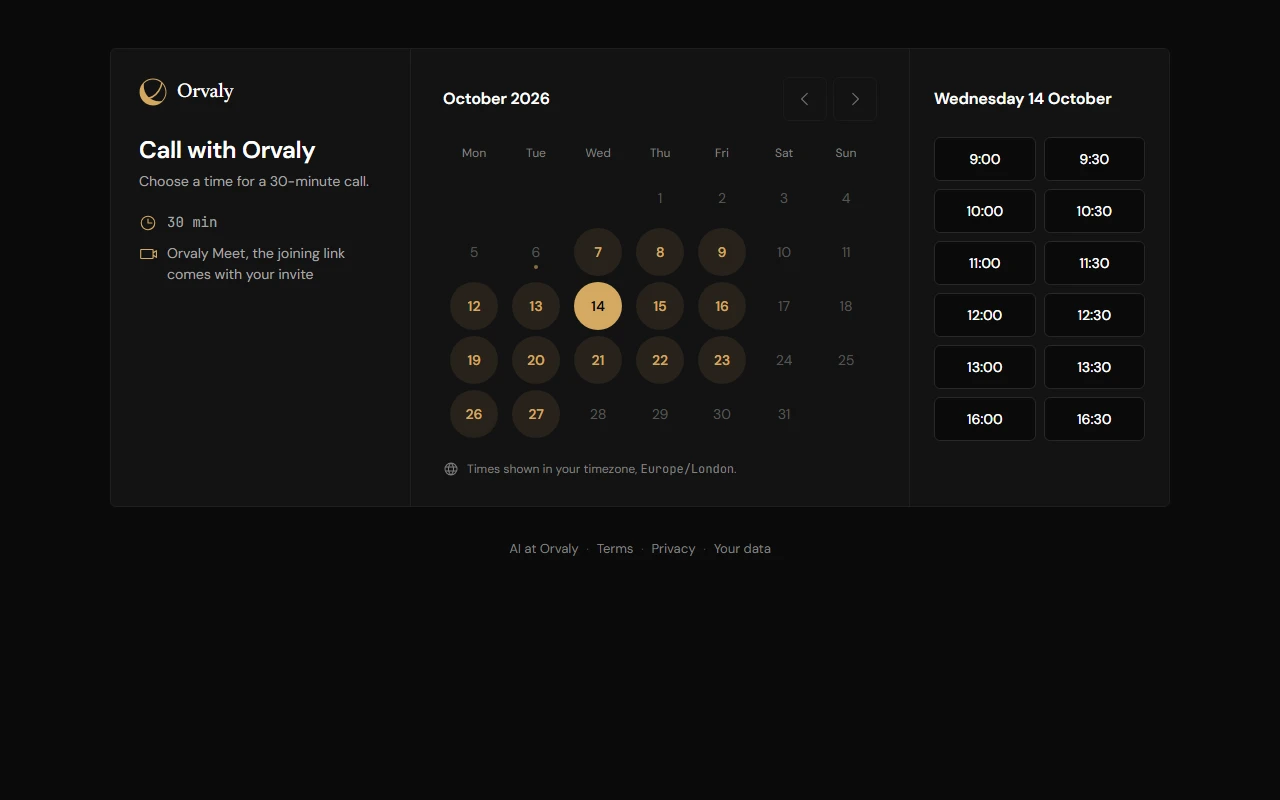
- A new enquiry - Reply with your link, and they choose a time without an exchange of emails.
- Before a first call - Ask what they need help with when they book, and their answer is on your copy of the invite.
Meet
Meet with anyone, agents work as you talk
Start or schedule a meeting
- Start a meeting at once, or schedule one and send the invites.
- The meeting opens in your browser.
How guests join
- Clients and other guests join without an account.
- They type their name and wait in the lobby until someone from your team lets them in.
- Before they join, guests are told that the host may start transcription.
During the meeting
- The meeting is transcribed once the host starts recording, and everyone can see when it's on.
- Message the whole room, or one person privately.
- Ask Astra a private question.
- While the meeting is transcribed, AstraDo suggests tasks from what is said.
- Share your screen from Chrome or Edge on a computer.
After the meeting
- When recording stops, Orvaly writes a summary, shaped to the kind of meeting and how long it ran.
- Review the summary first, or have it saved to your Vault automatically.
- Once it's saved, its actions are on your Actions page.
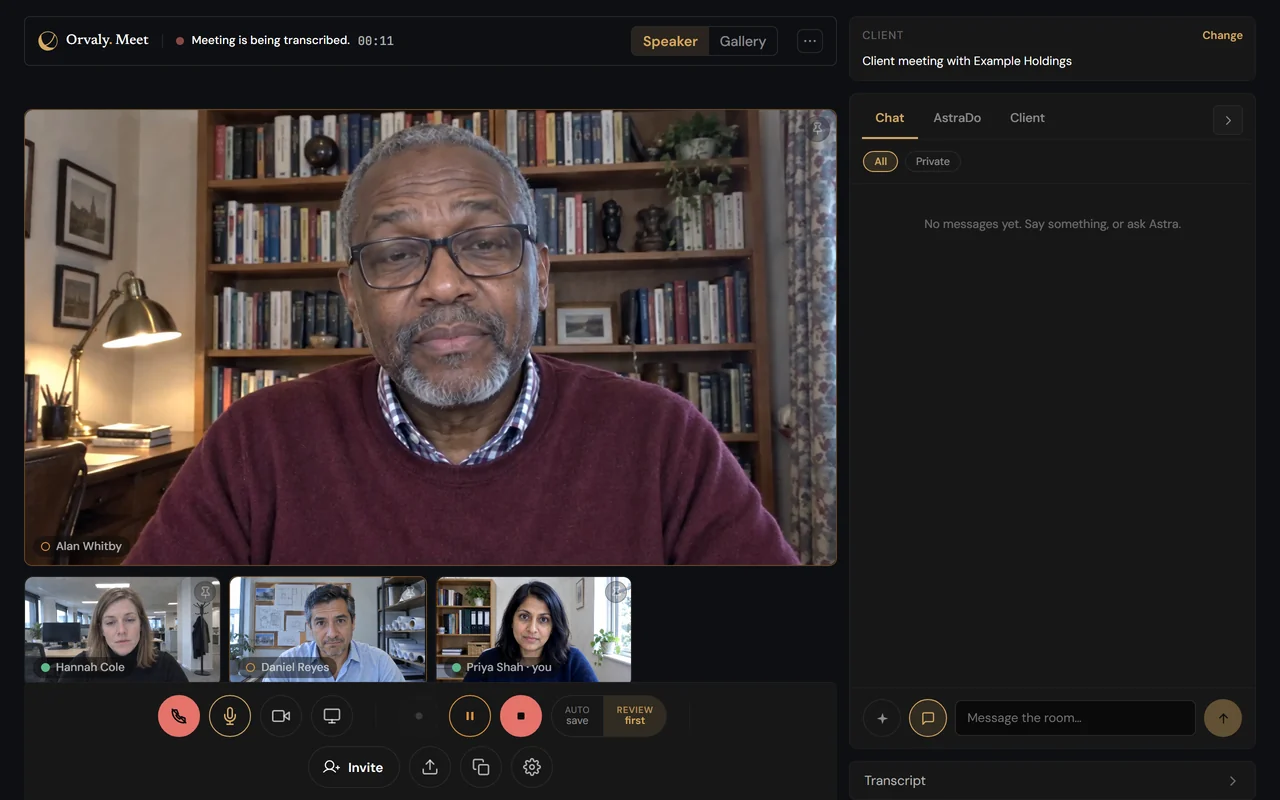
- A client call - As host, file the meeting to its client, and the client's brief is brought up to date the next time it's opened.
- While you talk - A task AstraDo suggests can be done while the call is still running.
- Next week - Ask Astra what was agreed, and it answers from the saved meeting.

Transcribe
Capture conversations and your own thoughts
Where it works
- Online meetings: Capture a call on another platform in a browser tab.
- In-person meetings: Capture a conversation using one microphone.
- Your own thoughts: Dictate notes on your own.
How to start
- Open Transcribe and choose what you're capturing: a call in another tab, in the room, or just you.
- For an online meeting, share the call's browser tab and include its sound.
- For an in-person meeting or dictation, use your microphone.
- Optionally, choose a client to file the recording under.
While recording
- The transcript appears as people speak.
- A visible banner shows when Transcribe is listening.
- No bot joins your online meeting.
You're responsible for getting any consent needed before recording.
When you finish
- Stop recording to generate a summary.
- Save it to your Vault automatically, or review it before saving.
- You can assign it to a client afterwards.
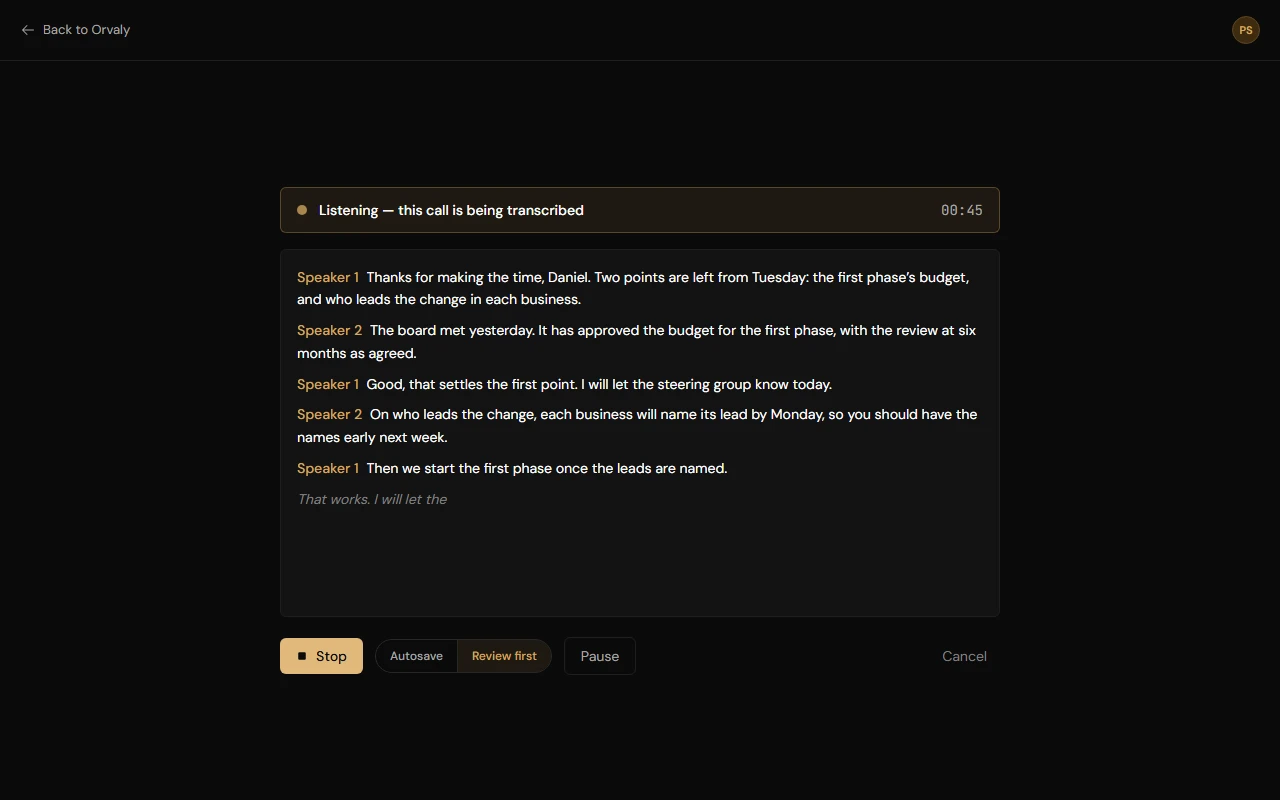
- A client's call on another platform - Join their Teams or Zoom call in Chrome or Edge on your computer, and capture it from that tab.
- A meeting in person - Open Transcribe on a laptop or phone on the table.
- Your own thoughts - Dictate a note while a client meeting is fresh in your mind, and file it to the client.

Client Manager
File your work to the client it belongs to
What's on a client's page
- A brief of where things stand, written by Astra.
- Click the number on any sentence of the brief to open its source beside the page.
- The page also has next steps, activity, people, documents, tasks and details.
- Everyone on your team sees the same page.
Add work to the client
- Anyone on your team can add a client.
- Log a note, a call or an email by typing or pasting it.
- File a document by uploading it or choosing one from your Vault.
- File a meeting you host from Meet, or a recording from Transcribe.
Review Astra's suggestions
- From what you log, Astra suggests people, tasks, notes and a change of stage.
- Nothing Astra suggests is added to the client's record until someone confirms it.
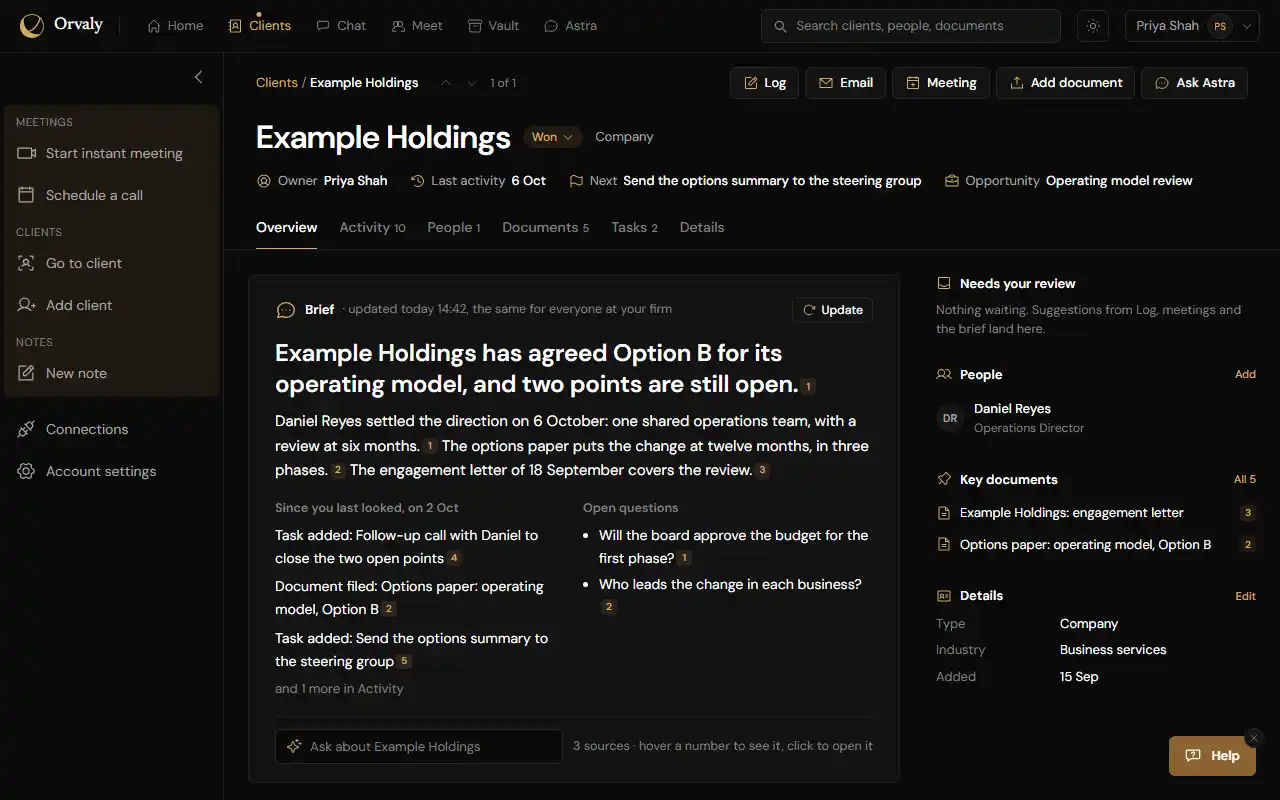
- Before a call - Read the brief, and go in knowing what's open and what's next.
- During a call - File the meeting to the client as its host, and your team sees the client's summary and documents beside the call. Guests don't.
- After a call - Ask Astra to draft a follow-up for your next step, open it in your own email app to send it, then log it as sent.

AstraDo
Agents that execute work in meetings across Orvaly and other platforms
What it can do
- Search your Vault or the web.
- Draft summaries, briefs and emails.
- Arrange meetings with colleagues.
AstraDo can complete the tasks listed here. Some requests are not yet supported.
How a task starts
- While your meeting is recorded, AstraDo suggests tasks as it runs.
- Each suggestion appears as a card.
- You or a colleague choose which tasks to start.
Review and approve
- Results appear in the meeting for you to review.
- Nothing is sent, saved or scheduled without someone approving it.
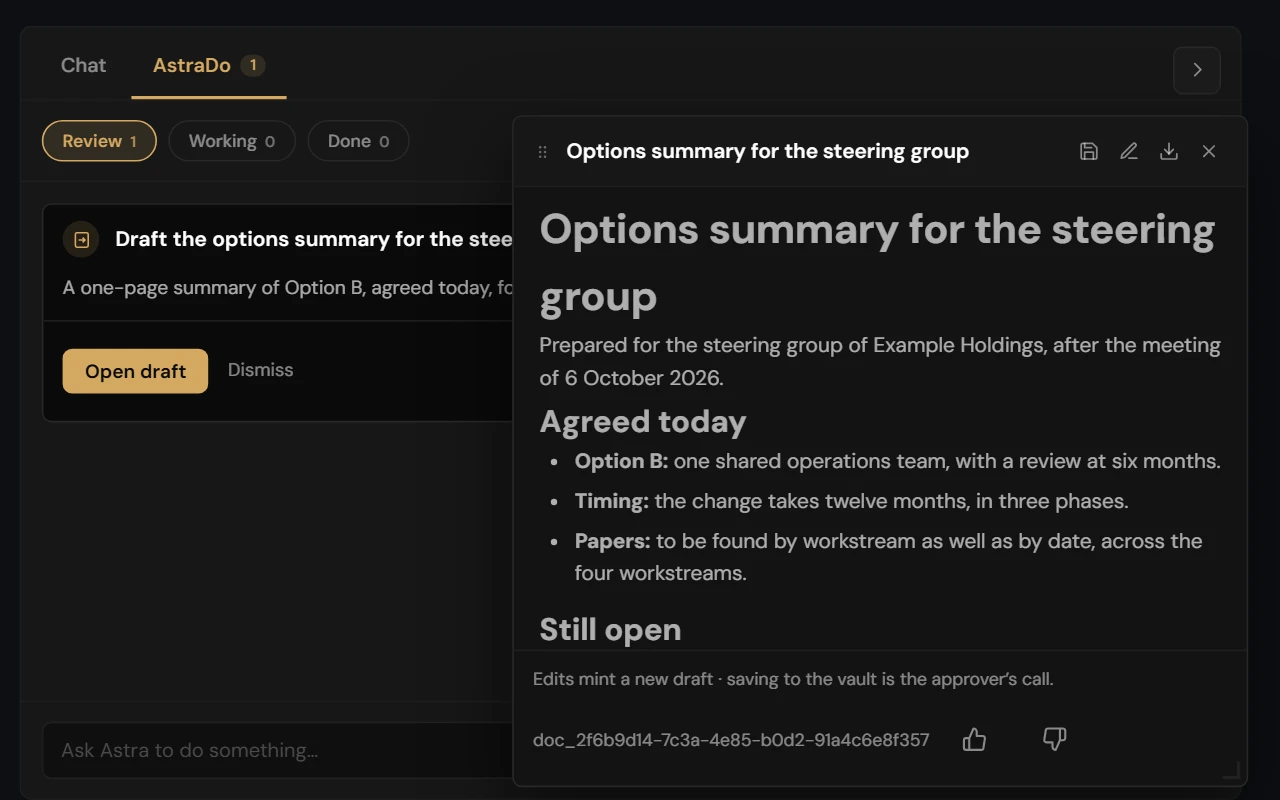
- In the meeting - A client asks for a one-page summary. Press Draft it on AstraDo's card, and open the draft before the call ends.
- Arranging the next one - Someone says the team should meet again, and you send the invite AstraDo has filled in.
- After the meeting - Whoever started the task can save the draft to your Vault under their name, then file it to the client from the client's page.

Astra
Reason over your business knowledge, compose documents in your branded colours & more
Ask questions
- Ask Astra a question, and it answers from your Vault.
- It brings in research from the web when that helps.
- Start from a client's page to keep a conversation to that client, or ask across everything your business knows.
- Attach a file for one conversation.
Create and edit documents
- Ask for a document, and Astra drafts it beside the conversation.
- Change it by telling Astra, or edit it yourself.
- Save it to your Vault when it's right.
- Export it as Word, PDF or PowerPoint.
Check the sources
- You see Astra's steps as it works.
- Each answer says how many sources Astra reviewed, and names the documents it read in full and the web pages it used.
- AI can be wrong, so check anything important before you rely on it.
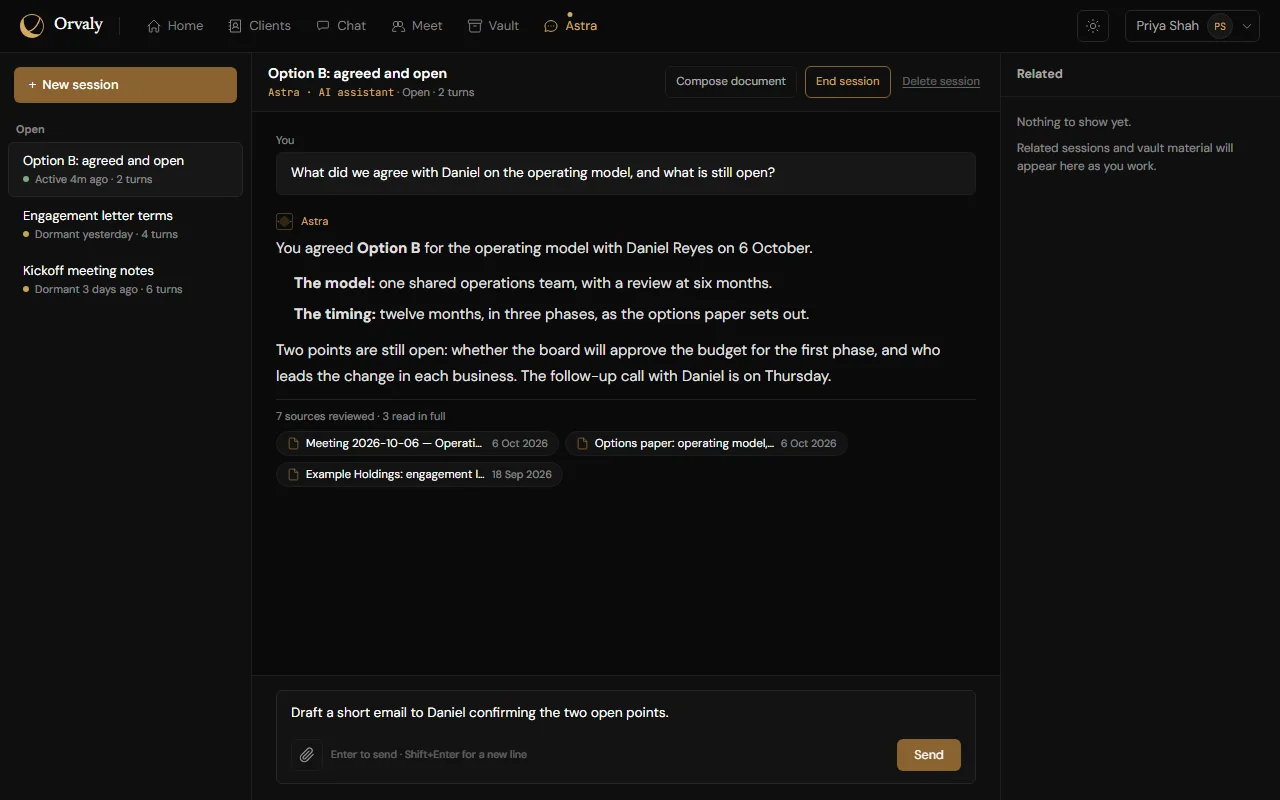
- Before a call - Ask what was agreed with a client last time.
- Writing it up - Have Astra draft a proposal from what's already in your Vault, then save it and file it to the client.
- Wherever you are working - Astra is also in the meeting for a private question, on each client's page for the brief, and in the Help window.

Chat
Chat with your teammates, pull your discussions for analysis any time
Ways to chat
- Channels, direct messages and group conversations with your team.
- Reply in threads, pin messages and search.
- A private Notes conversation for yourself.
Who can see a conversation
- A channel is open to everyone on your team, or by invitation only.
- Only members can read a conversation.
- An invitation-only channel stays hidden from everyone else.
Find a past discussion with Astra
- Describe a discussion you remember, and Astra finds the likely ones.
- Astra looks only in conversations you're part of.
- Confirm the one you mean, and Astra brings that part of it into your conversation.
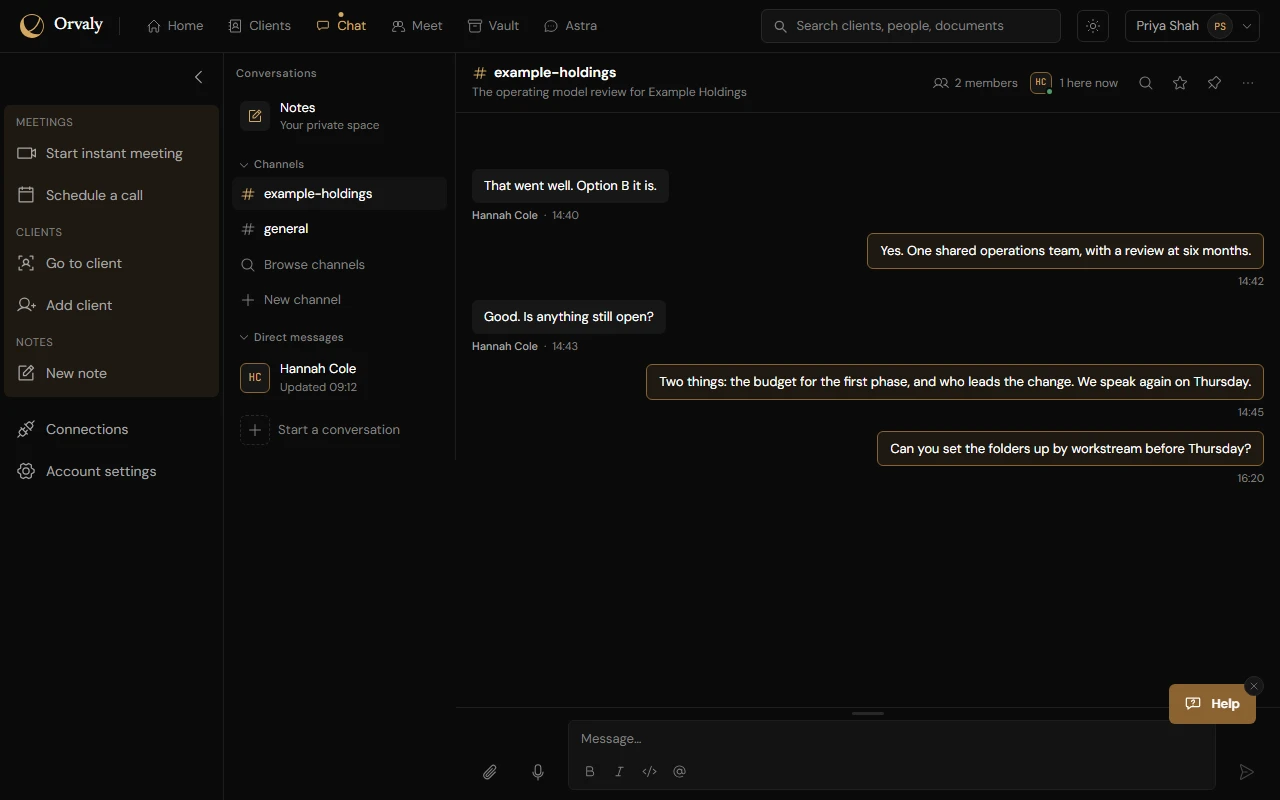
- A client's work - Start a channel for it, so the discussion about that client is in one place.
- Keeping what matters - Save an attachment from a conversation to your Vault, or dictate a note to yourself.
Vault
Every meeting and document, remembered and retrieved when you need it
Add and save
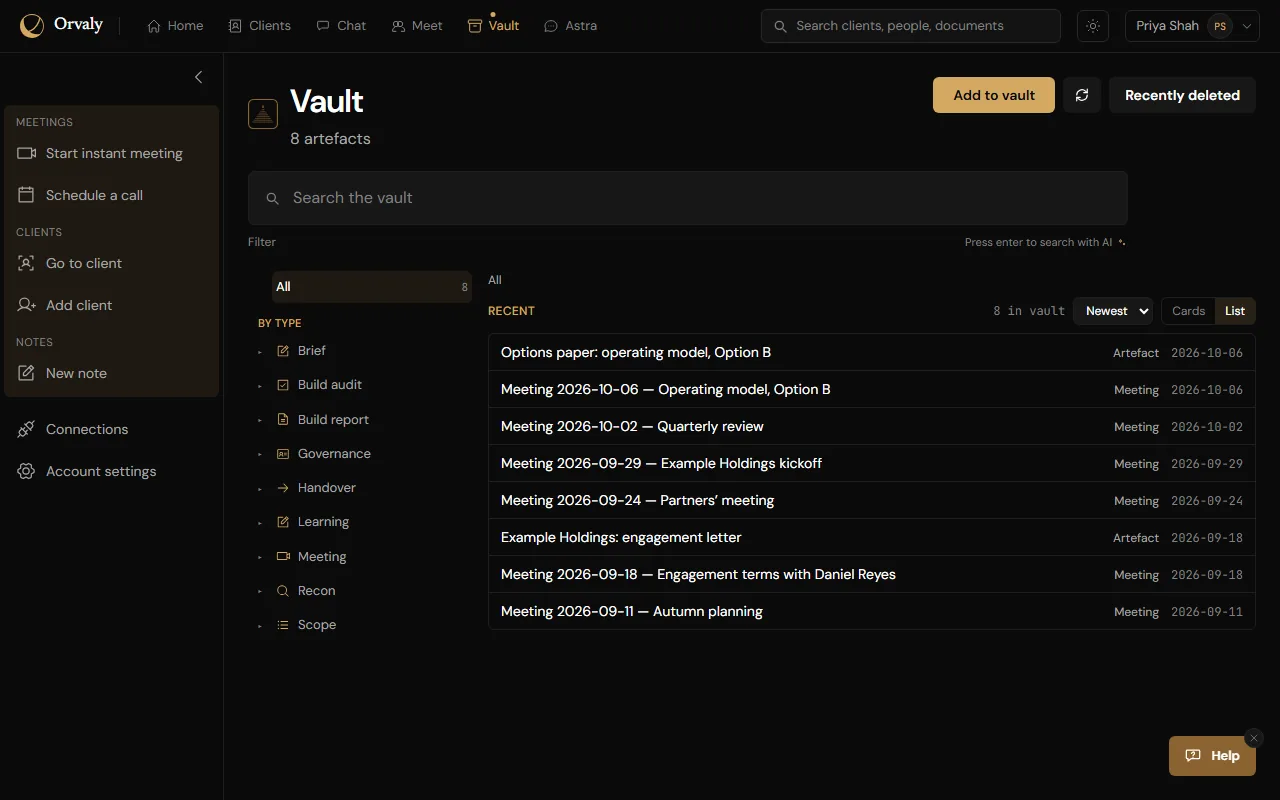
- Meeting records are filed here for you.
- Add anything else by writing a note or uploading files.
- When you add a document or write a note, Astra suggests a title, tags and a summary.
- You review them before saving, and can change the title or add tags of your own.
Find and retrieve
- Search by title or tag, or press Enter for an AI search.
- Narrow the list by date or tag.
- Ask Astra a question, and it answers from what's in your Vault.
Manage your records
- Each record shows its date and when it was saved.
- Records Astra writes, such as meeting records, are marked as generated by Astra AI.
- Export a record as Markdown, Word, PDF or PowerPoint.
- Delete a record, and you can restore it from Recently deleted for 30 days.
- After a client meeting - The record is filed to the client too, if you linked the meeting to one.
- Starting with Orvaly - Upload the documents you already have, up to 50 files at a time, and they're filed straight away.